00. Introduction to CSS
CSS (Cascading Style Sheets) is a style sheet language used to describe the presentation of a document written in HTML.
- CSS files are saved with the
.cssfile extension.
01. CSS Syntax
selector {
  property: value;
}
Example:
p {
    color: blue;
    font-size: 18px;
}

<p>This is a paragraph styled using CSS</p>
CSS Comment
Example:
/* This is a CSS comment */
02. Ways to Add CSS
1. Inline (Not recommended)
– Using thestyle attribute
<p style="color:red;">Hello</p>
2. Internal CSS
– Using the<style> tag within the <head> section
<style>
p {
  color: red;
}
</style>
3. External CSS (Best practice)
– Linking to a separate .css file using the<link> tag
<link rel="stylesheet" href="style.css" />
03. CSS Properties
Common CSS Properties
| Property | Description | Example CSS | Result |
|---|---|---|---|
| color | Changes text color | p { color: red; } |
Paragraph text becomes red |
| background-color | Sets background color | div { background-color: yellow; } |
Div background turns yellow |
| font-size | Controls text size | h1 { font-size: 30px; } |
Heading text becomes larger |
| margin | Space outside element | .box { margin: 20px; } |
Adds outer spacing |
| padding | Space inside element | .box { padding: 15px; } |
Adds inner spacing |
| border | Adds outline | .box { border: 2px solid black; } |
Creates border around box |
| border-radius | Rounds the corners | .box { border-radius: 10px; } |
Makes the box corners rounded |
| width | Sets element width | img { width: 200px; } |
Image width fixed |
| height | Sets element height | img { height: 150px; } |
Image height fixed |
| text-align | Aligns text | h1 { text-align: center; } |
Text moves to center |
| display | Controls layout type | span { display: block; } |
Inline becomes block |
| text-decoration | Adds underline, line-through, etc. | a { text-decoration: underline; } |
Underlines text |
| font-weight | Controls boldness | p { font-weight: bold; } |
Makes text bold |
| object-fit | Controls how media fits inside container | img { object-fit: cover; } |
Fills container while maintaining aspect ratio |
04. CSS Selectors
CSS selectors are used to target HTML elements for styling.
| Selector | Example | Meaning |
|---|---|---|
| Element | p |
All paragraphs |
| Class | .box |
Elements with class="box" |
| ID | #title |
Element with id="title" |
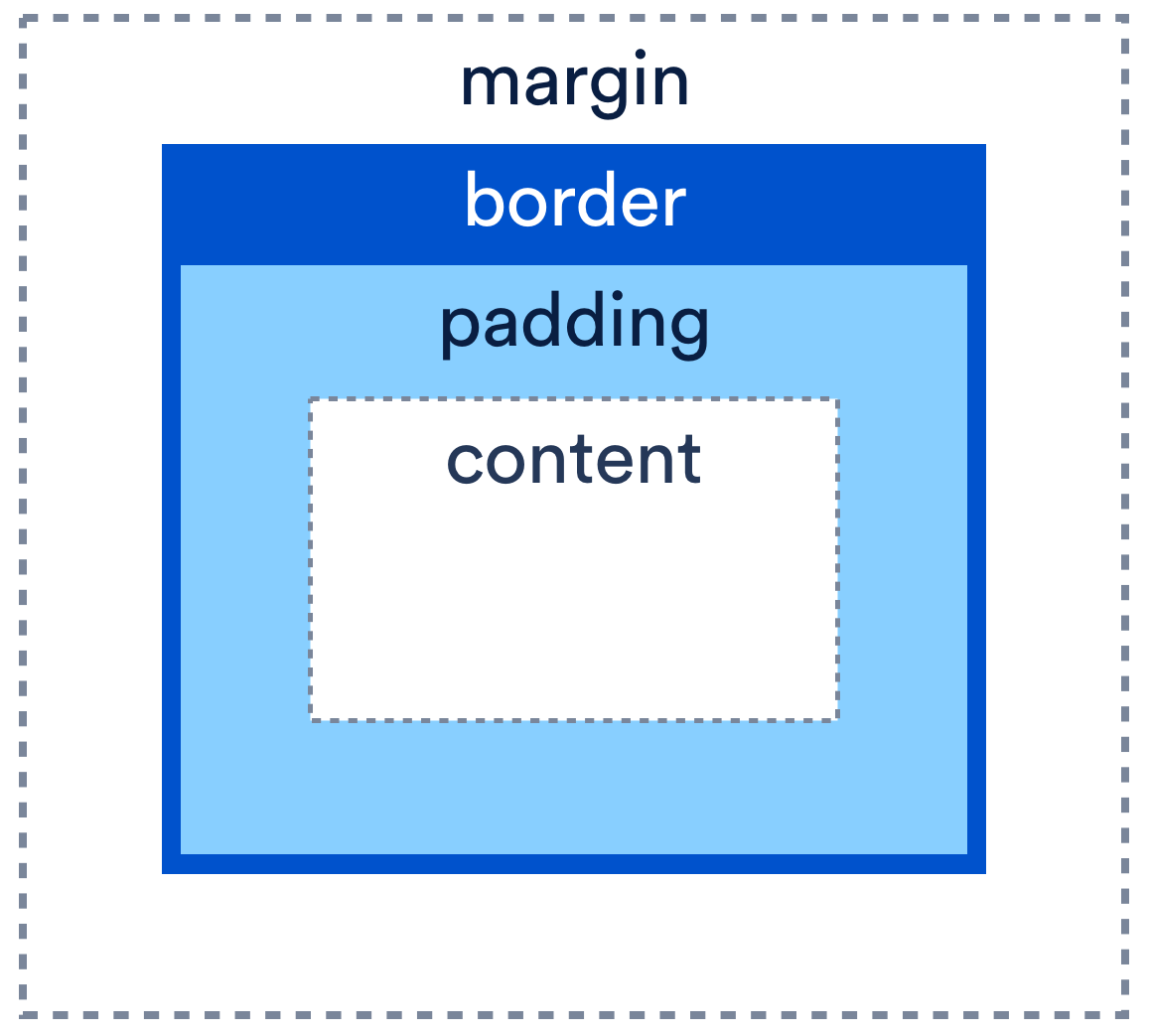
05. CSS Box Model
Every element is a box:
Margin → Border → Padding → Content
06. More CSS Properties
Advanced Layout & Effects
| Property | Description | Example | Effect |
|---|---|---|---|
| position | Sets positioning method | .box { position: absolute; } |
Allows custom placement |
| top | Distance from top | .box { top: 20px; } |
Moves element down |
| left | Distance from left | .box { left: 30px; } |
Moves element right |
| right | Distance from right | .box { right: 10px; } |
Moves element left |
| bottom | Distance from bottom | .box { bottom: 15px; } |
Moves element up |
| z-index | Controls layer order | .box { z-index: 10; } |
Brings element forward |
| overflow | Controls content that exceeds container | .box { overflow: hidden; } |
Hides extra content outside the box |
| box-shadow | Adds shadow | .box { box-shadow: 2px 2px 10px gray; } |
Adds soft shadow |
| transform | Moves, scales, or rotates element | .box { transform: rotate(20deg); } |
Rotates element |
| :hover | Style on mouse hover | .btn:hover { background: red; } |
Changes color when hovered |
More Advanced Animation
| Property | Description | Example | Effect |
|---|---|---|---|
| transition | Smooth change effect | .box { transition: 0.3s; } |
Smooth animation between states |
| @keyframes | Defines animation steps |
@keyframes move {
  from { left: 0; }
  to { left: 100px; }
}
|
Creates animation sequence |
| animation | Applies keyframe animation to an element | .box { animation: move 2s infinite; } |
Runs defined animation repeatedly or once |
More Animation Example
07. CSS Position Property
The position property in CSS is used to control how an element is placed on a webpage
It defines whether an element is static, moved, fixed, or absolutely positioned.
Types of Position in CSS
-
Static (default)
- This is the default position for all elements.
- The element follows the normal document flow (top to bottom).
- You CANNOT use top, left, right, or bottom.
-
Relative
- The element still stays in the normal flow.
- But now you CAN move it using top, left, right, bottom.
- It moves relative to its original position.
-
Absolute
- The element is REMOVED from the normal flow.
- It positions itself relative to the nearest positioned parent (not static).
- If no parent is positioned, it uses the whole page (body).
-
Fixed
- The element is REMOVED from the normal flow.
- It is positioned relative to the browser window (viewport).
- It stays fixed even when you scroll.
-
Sticky
- The element acts like relative at first.
- Then it becomes fixed when you scroll past a certain point.
- You MUST use top, left, etc. to define when it sticks.